Portrait editors
A face looks soft after cropping, but heavy sharpening could make skin look artificial.
Use restrained detail recovery and inspect eyes, hair, and skin separately before keeping the result.
nano banana image enhancer promptTool comparison
A Fotor AI enhancer can help sharpen soft details, balance color, and recover visual clarity, but the best result depends on the image and the edit you actually need. Use this guide to compare a focused enhancement workflow without confusing a single tool with every image problem.
Use cases
The right workflow changes with the source image. Start with the problem you can see, then choose the least aggressive correction that solves it.
A face looks soft after cropping, but heavy sharpening could make skin look artificial.
Use restrained detail recovery and inspect eyes, hair, and skin separately before keeping the result.
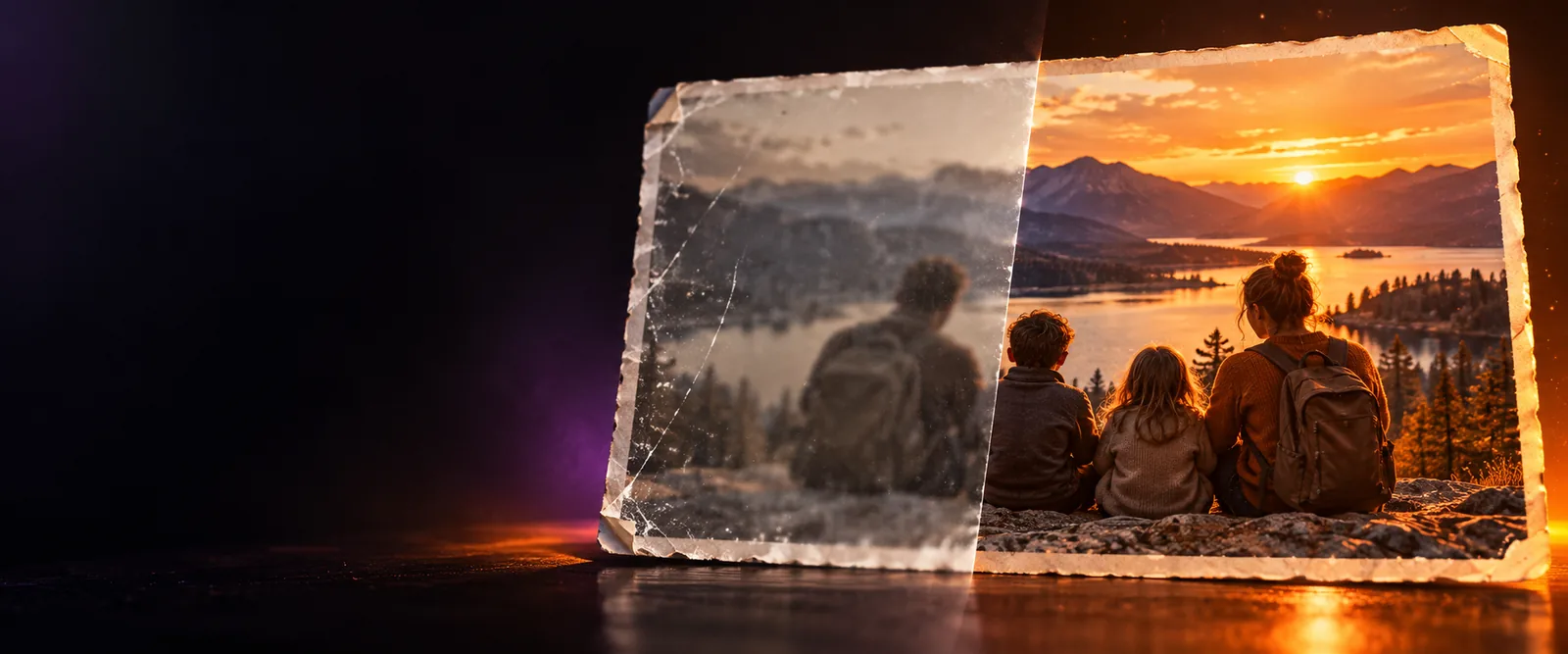
nano banana image enhancer promptAn older scan has faded contrast, mild noise, and uneven color from the original print.
Correct tone and color first, then apply moderate enhancement so the restored photo keeps its age and character.
nano banana image enhancer promptA product listing image needs cleaner edges and stronger separation from a distracting background.
Prioritize edge clarity and consistent color, then compare the enhanced file with the original at listing size.
nano banana image enhancer promptA low-light travel photo looks muddy on a phone screen and loses detail in the shadows.
Lift exposure carefully, reduce visible noise, and avoid sharpening empty shadow areas that contain no useful detail.
nano banana image enhancer promptSimple workflow
A reliable enhancement process is less about pressing one button and more about checking what changed at the size where the image will be used.
Look for blur, noise, weak contrast, color casts, compression artifacts, or low resolution. Name the main defect before applying several corrections at once.
Choose the smallest adjustment that addresses the visible problem. Preserve natural edges, skin texture, lettering, and fine patterns instead of forcing detail that was never captured.
Compare the result beside the original at full size and at its final display size. If halos, plastic texture, or invented details appear, reduce the effect or return to the source.
Keep exploring
These nearby guides cover prompts, access options, and image-specific workflows that can help you decide what to try next.
Visual check
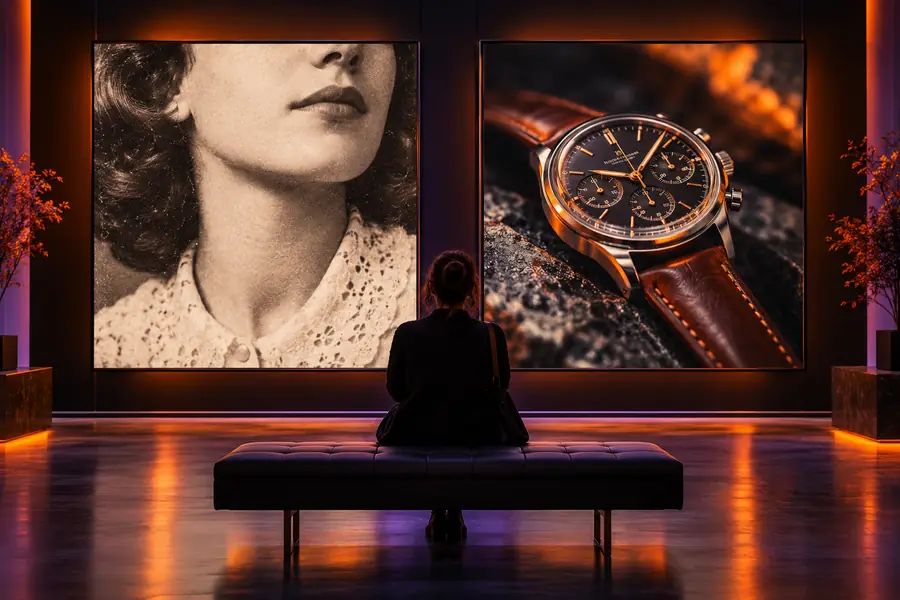
A stronger-looking image is not automatically a more accurate one. Use the divider to check whether clarity improved without introducing distracting artifacts.
 Original
 Enhanced
Set expectations
An AI-based enhancer can estimate and rebalance visual information, but it cannot recover every detail or prove that a generated-looking result is faithful to the source.
If a face, label, or object is heavily blurred or compressed, enhancement may create plausible edges rather than restore the original pixels.
Workaround
Keep the source file, use the highest-quality upload available, and judge the output for fidelity rather than apparent sharpness.
Enhancement may improve clarity, but it will not automatically solve awkward cropping, a distracting background, poor framing, or an important subject outside the image.
Workaround
Crop or retake the image first when composition is the real problem.
Strong settings can smooth skin, exaggerate grain, create halos around edges, or make repeated patterns look synthetic.
Workaround
Use a lighter pass and inspect hair, fabric, text, and architectural lines at full size.
A brighter or more saturated result can look impressive while becoming less accurate, especially for products, artwork, and scanned photographs.
Workaround
Compare against the original under neutral viewing conditions and correct color separately when accuracy matters.
Next step
A focused enhancement workflow gives you a clearer basis for comparison: identify the defect, make one controlled change, and inspect the result at the size that matters. Use the handoff to try an image-focused edit, then keep the original available for an honest comparison.
Enhance an imageCommon questions
Answers to the practical questions people ask when comparing a named image-enhancement tool with a broader editing workflow.
The phrase usually refers to Fotor’s AI-assisted image enhancement features, which are designed to improve qualities such as sharpness, clarity, lighting, or color. The exact controls and output depend on the current product experience and the image you provide.
Not necessarily. An upscaler primarily increases image dimensions while estimating missing pixels, whereas an enhancer may also adjust tone, color, noise, contrast, or perceived detail. Some tools combine both functions, so check which operation is being applied.
It can make some blurry photos look cleaner by improving contrast and reconstructing plausible edges, but it cannot guarantee recovery of detail that was never captured. Strong blur, motion blur, tiny text, and severe compression should be treated as difficult cases.
Use the same source image, keep the output dimensions comparable, and inspect the same areas in each result. Compare natural texture, edge halos, color accuracy, artifacts, and how the image looks at its intended display size rather than choosing the sharpest-looking version automatically.
Moderately soft portraits, older scans, low-contrast photos, and everyday images with manageable noise are usually easier to improve than severely damaged files. Product photos and documents also need extra attention to accurate color and lettering.