Photo improvement
Make a clearer image with an ai photo enhancer
Start with the original photo and a specific goal: reduce visible noise, improve perceived sharpness, or make a dark scene easier to read. An ai enhancer can suggest new detail, so compare the result closely rather than assuming every sharper-looking edge is accurate.
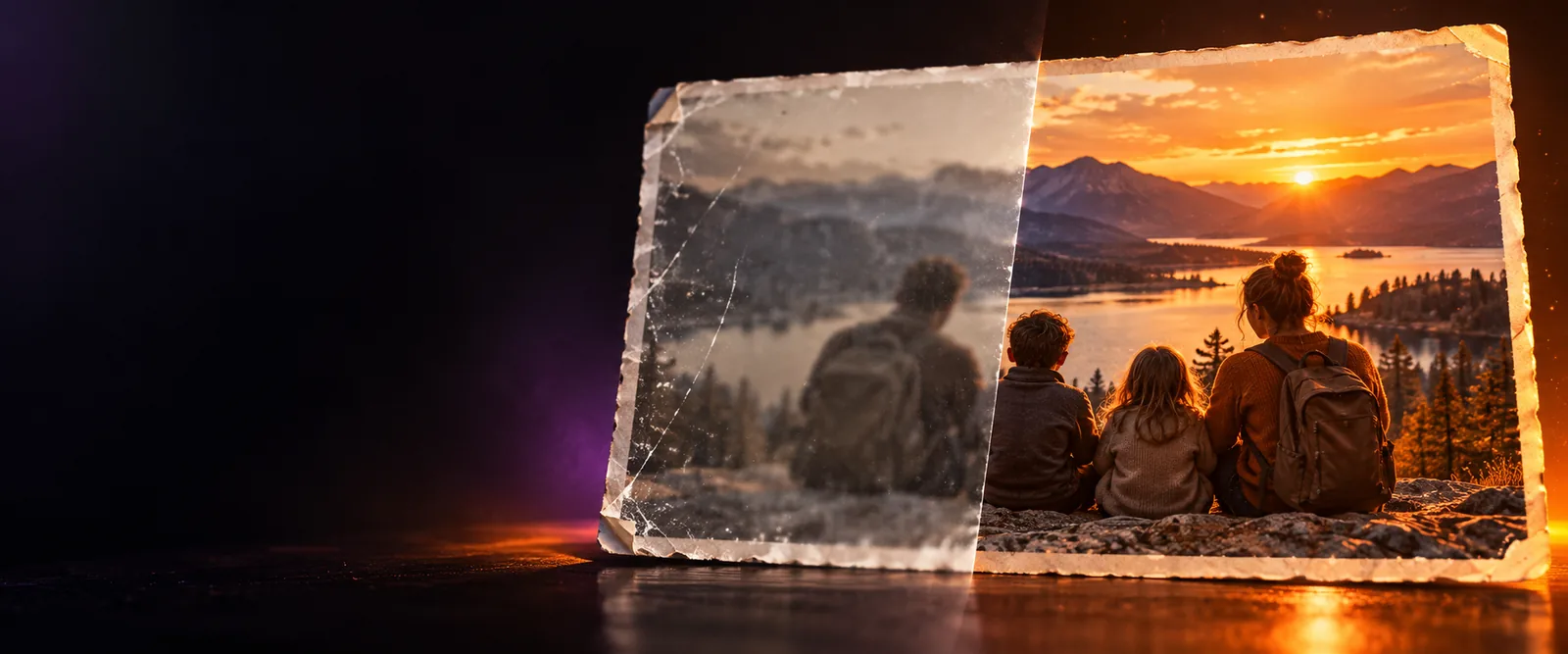
A clearer photo starts with a specific problem
Choose the issue you can actually see in the original; different defects call for different edits.
Three mechanisms behind a clearer photo
Noise reduction, tonal adjustment, and detail reconstruction solve different problems; combining them indiscriminately can make an image look processed.
-
1
Identify the defect
Inspect the original at its normal viewing size and then zoom in. Grain in shadows, weak contrast, motion blur, and a small source file are different issues. Name the most important one before describing an edit, and keep an untouched copy so you can judge whether the change helped.
-
2
Request a restrained edit
Describe the intended improvement and what must remain unchanged. For a portrait, that might mean clearer eyes without altered facial proportions or plastic-looking skin. For a landscape, ask for readable distant features while retaining the scene's natural atmosphere. A precise request gives you a clearer standard for review.
-
3
Inspect the result
Compare the edited image with the original at the same display size. Check faces, text, hair, straight lines, and repeating patterns for invented or distorted detail. If the image looks convincing only when zoomed out, try a gentler edit or keep the original for uses where accuracy matters.
Review the result step by step
A before-and-after view is a starting point, not proof that every recovered-looking detail was present in the source.
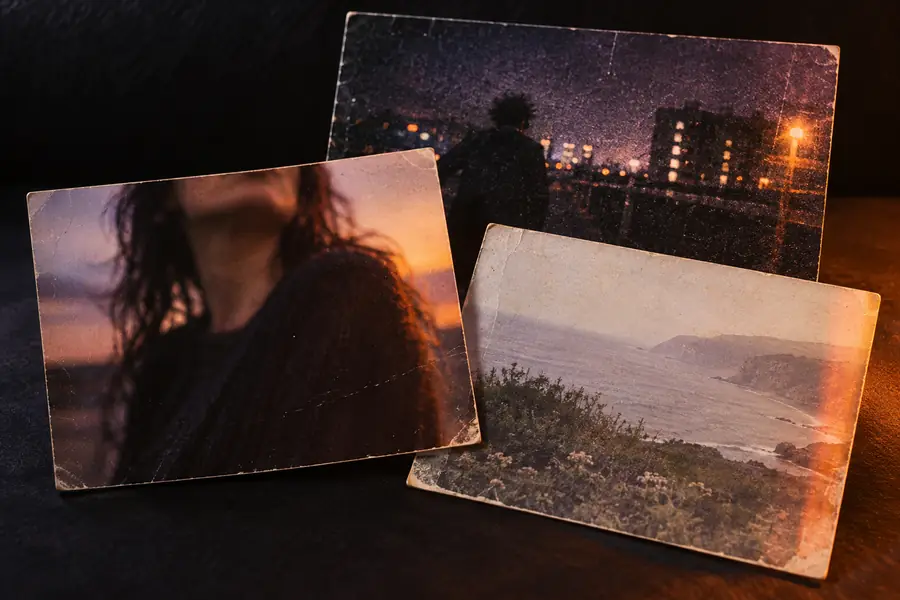 Illustrative before
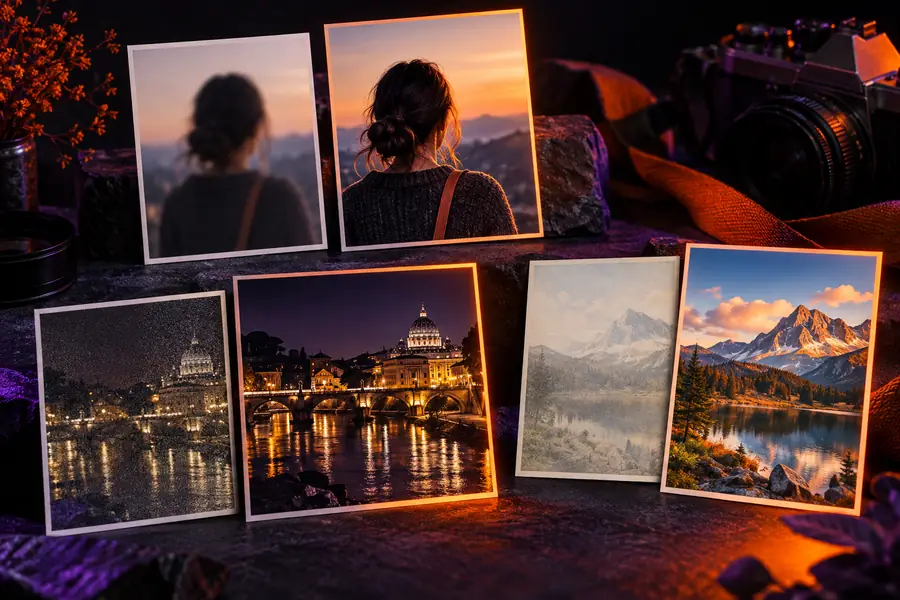 Illustrative after
Limits and edges to check
Compare what a photo improvement may make easier to see with what it cannot reliably recover from missing source information.
- Potential improvement
- Limit to inspect
Shadow noise
Potential improvement
Smoother dark areas can make a dim photo less distracting.
Limit to inspect
Aggressive smoothing can erase fabric, hair, and skin texture.
Perceived sharpness
Potential improvement
More defined edges can help a slightly soft photo read clearly.
Limit to inspect
Edge enhancement cannot confirm details lost to severe motion blur.
Small source images
Potential improvement
Upscaling may make an image more usable at a larger display size.
Limit to inspect
New pixels are inferred; they are not a record of previously captured detail.
Low contrast
Potential improvement
Tonal changes can separate a subject from its surroundings.
Limit to inspect
Strong contrast may clip bright areas or bury shadow information.
Portraits
Potential improvement
Subtle edits may improve the readability of facial features.
Limit to inspect
Reconstructed features can change a person's appearance.
Signs and text
Potential improvement
A cleaner image may make existing lettering easier to inspect.
Limit to inspect
Unclear characters may be guessed incorrectly; verify against the source.
Documentary use
Potential improvement
A separate edited copy can help with presentation.
Limit to inspect
Retain the original when provenance or faithful representation matters.
Work from your original photo
Make the next edit easier to judge
Bring a source image and describe one visible issue, along with any details you want preserved. Review the resulting image against your untouched original before using it for a portrait, product listing, or other accuracy-sensitive purpose. Aienhancer helps you approach enhancement as an edit to evaluate, not a guarantee that missing information can be restored.
Explore photo enhancement- Name the problem before editing
- Protect recognizable details
- Compare with the original
Questions about AI photo enhancement
Photo enhancement can address visible issues such as noise, low contrast, softness, or limited display size. The useful result depends on the quality of the source and the edit requested. Inspect the output for changed features or invented-looking texture.
It may make the picture appear sharper, but it cannot verify details that the camera never captured. Severe motion blur and missed focus are especially difficult to correct faithfully. Keep the original if identifying a person, object, or text matters.
It can, particularly when the face is small, blurry, or heavily compressed. Compare the eyes, mouth, face shape, and skin texture with the original before sharing an edited portrait. A restrained result is often preferable to one that looks sharp but less recognizable.
Enhancement is a broad goal that may involve tone, noise, or detail; upscaling specifically increases an image's dimensions. If the picture already displays at the size you need, start by addressing its visible defect rather than enlarging it. If you need a larger version, check the upscaled result for unnatural edges.
Compare both versions at the same size and look at the areas relevant to your intended use. Check whether the subject is easier to read without losing texture, changing identity, or introducing false text and patterns. A more dramatic difference is not necessarily a more faithful improvement.