Natural color may be reduced
A line-led result can soften or remove the original color relationships.
Workaround
Request light color accents if the scene still needs a colored identity.
A photo to sketch workflow turns an ordinary image into a line-focused interpretation while keeping the main subject recognizable. Describe the look you want, then review the result against the original.
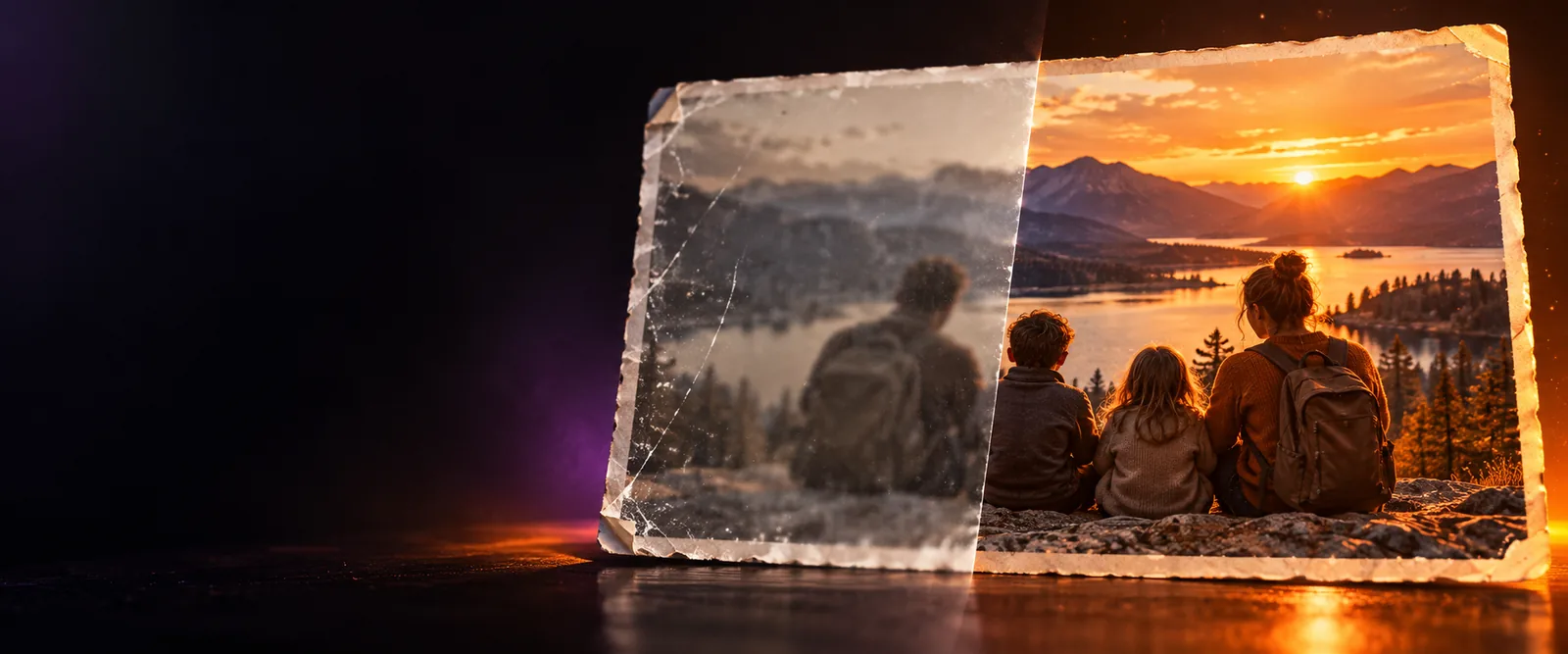
Choose a nearby image workflow when your final style or restoration goal differs from a hand-drawn look.
A sketch treatment is a visual reinterpretation, so some photographic information will be simplified or redirected.
A line-led result can soften or remove the original color relationships.
Workaround
Request light color accents if the scene still needs a colored identity.
Hair, fabric, foliage, and skin texture may be represented as strokes instead of photographic detail.
Workaround
Use a clear, well-lit source and ask for restrained line density.
Tiny labels, signs, and distant lettering can become indistinct during the conversion.
Workaround
Crop closer or keep the original beside the sketch for reference.
The converted image is a finished visual, not a set of editable pencil or ink layers.
Workaround
Save the source separately and continue in a layer-based editor when needed.
A simple three-stage process helps you set the visual direction and judge whether the output fits the source.
Name the medium or mood, such as graphite, ink outline, loose pencil, or architectural line work.
Check the subject, framing, major edges, and tonal balance against the original image.
Adjust line weight, shading, contrast, or background treatment when the first sketch feels too heavy or too plain.
Use the source and converted image as an A/B check rather than judging the sketch in isolation.
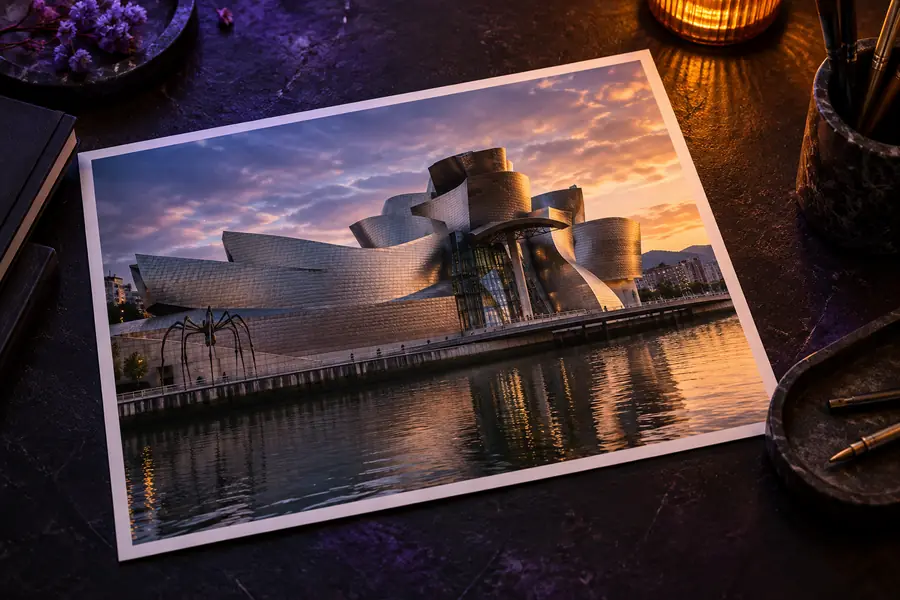 Original photo
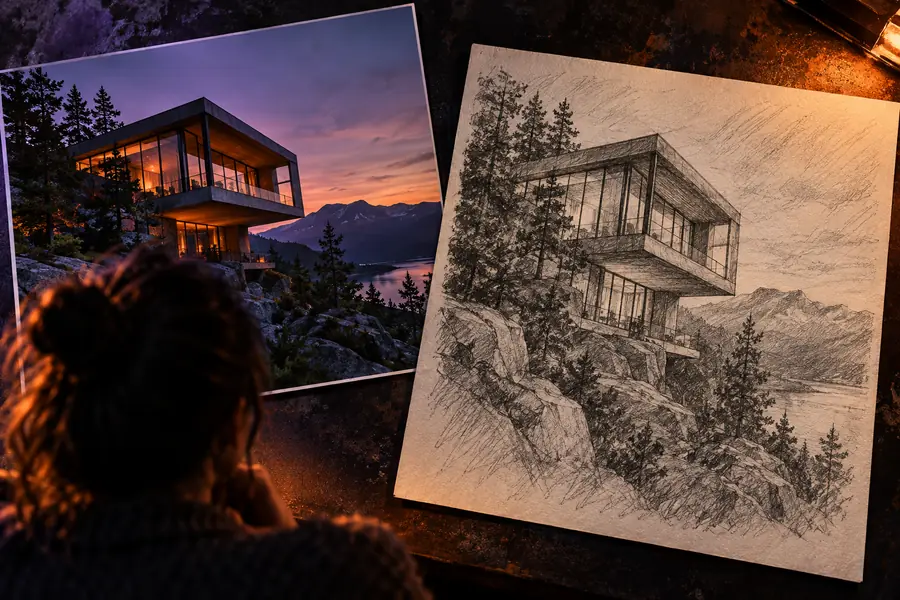 Sketch result
Different subjects benefit from different levels of line detail, shading, and simplification.
You want a thoughtful profile image with visible expression and a hand-drawn feel.
A restrained graphite direction can emphasize the face without relying on full photographic color.
ai face enhancerYou need quick visual references from location photos or rough scene captures.
A sketch treatment can make composition and gesture easier to review before a polished illustration.
photo to anime converterYou want an old photograph presented as a clean study image while retaining its main structure.
A controlled line treatment can highlight subjects and architecture without adding decorative effects.
photo enhancer freeYou are exploring an object silhouette or packaging idea from a reference photo.
Simplified edges can help isolate shape and proportion during early visual exploration.
ai image enhancer freeYou want an editorial illustration from a landmark, street, or landscape photograph.
A sketch result can provide a quieter companion visual while the source remains available for factual reference.
image color enhancer online freeThe conversion changes how information is represented, not just how the image looks.
Primary information
Original photo
Continuous color, texture, and photographic light
Sketch result
Lines, contours, selective shading, and simplified tones
Edges
Original photo
Defined by contrast, focus, and natural boundaries
Sketch result
Emphasized as drawn strokes or outlines
Color
Original photo
Preserves the captured palette
Sketch result
May become monochrome or a limited accent palette
Surface detail
Original photo
Shows small material and texture changes
Sketch result
Condenses texture into marks and shading
Depth cues
Original photo
Uses perspective, focus, light, and color variation
Sketch result
Uses line weight, overlap, and tonal separation
Editing expectation
Original photo
Source reference for further enhancement or cropping
Sketch result
Finished visual treatment that may need redraws for precise edits
Use these fixed checkpoints when deciding whether the sketch is ready to keep or refine.
Start with a clear source image and a specific line style, then compare the result with the original before making a final choice. Aienhancer gives you a direct way to test the visual direction.
Convert my photoOpen the image tool, provide a source photo, and describe the sketch style you want. Review the result against the original, then refine the line or shading direction if needed.
Yes, describe graphite, pencil, soft shading, or another drawing approach in the visual brief. Mention whether you prefer delicate outlines, visible crosshatching, or a stronger contrast.
Clear images with a recognizable subject, useful lighting, and visible edges are usually easier to judge as sketches. Simple backgrounds can also help the main form remain readable.
The original should remain your reference while you evaluate the converted result. Keep a separate copy of the source if you plan to crop, edit, or reuse it later.
Describe a monochrome graphite or ink treatment when you want color reduced to lines and tonal shading. If color matters, request limited accents instead of a fully monochrome result.