Controlled image edits

A practical image enhancer no AI workflow

An image enhancer no AI approach improves clarity, tone, and detail without asking a generative model to invent new content. Use this guide to prepare an image, choose a restrained edit, and check the result.

Review every result
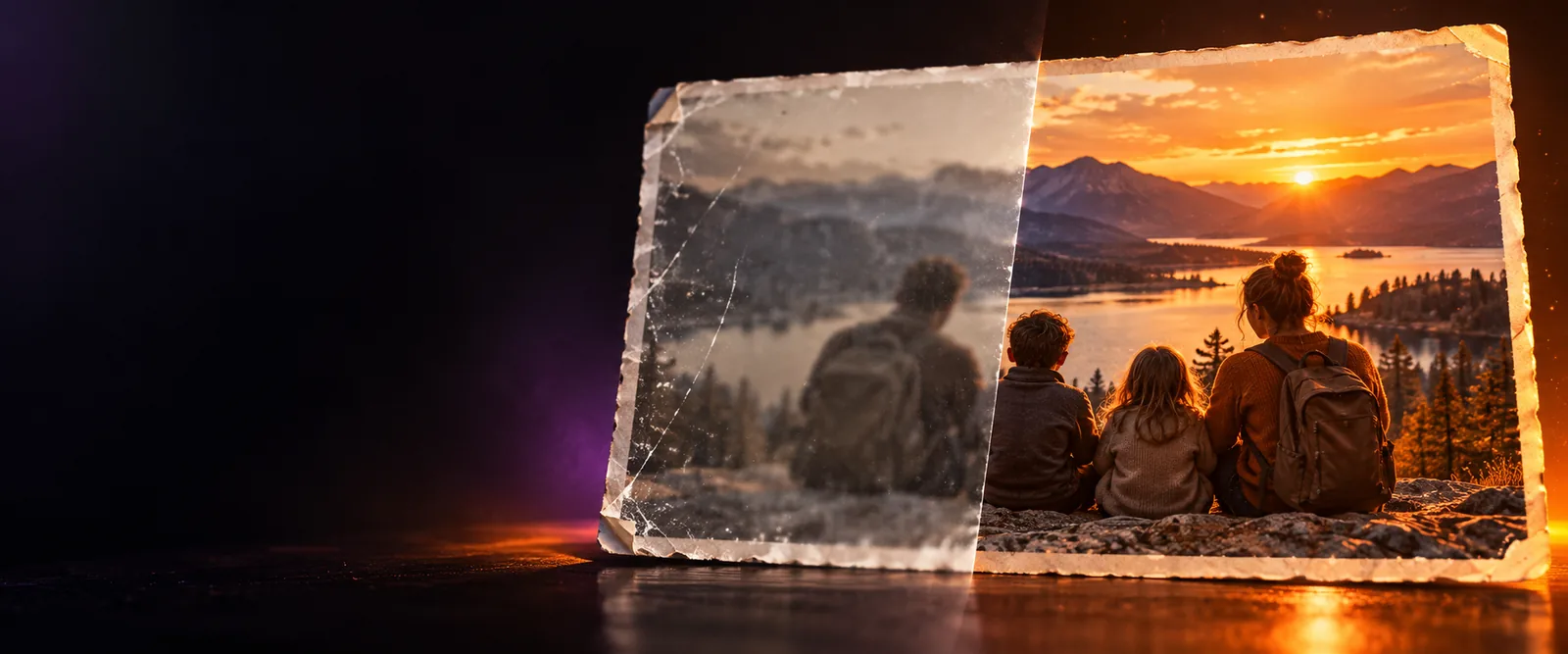
Enhanced image detail shown in a framed visual panel

Prerequisites

Start with a clear goal and an original file you can compare against. These related guides cover adjacent enhancement choices when your project needs more than restrained editing.

One full run-through

A controlled enhancement is easier to judge when each decision has a purpose. Work from the source image outward, changing one visual quality at a time.

  1. 1

    Inspect the original

    Check whether the real issue is blur, noise, weak contrast, dull color, or insufficient resolution. Keep the untouched file so every change has a reliable reference.

  2. 2

    Apply a restrained edit

    Begin with modest sharpening or noise reduction, then adjust exposure, contrast, and color only as needed. Avoid settings that create halos, plastic skin, or clipped highlights.

  3. 3

    Compare and export

    View the edited image beside the source at the same size. If edges look artificial or texture has disappeared, reduce the effect before saving the final version.

Options table

The right option depends on the visible defect, not on the word enhancement alone. Match the edit to the problem you can identify.

objects intentionally invented
0 new
original image kept for comparison
1 source
before-and-after states to inspect
2 views
detail, color, and unwanted artifacts
3 checks
Original image before controlled enhancement Original
Edited image after controlled enhancement Enhanced
Use the divider to judge detail and color separately; a brighter image is not automatically a better one.

What fails

No AI workflow is useful when it promises to recover information that was never captured. Knowing the boundary helps you choose a safer edit or a different route.

Severe blur stays uncertain

Sharpening can increase edge contrast, but it cannot reliably reconstruct lettering or facial detail lost through heavy motion blur.

Workaround

Use a sharper source, reduce the crop, or treat the result as an interpretation rather than proof.

Missing detail cannot be guaranteed

A small, compressed image may look cleaner after enlargement while still lacking genuine source detail.

Workaround

Keep the original dimensions where possible and compare texture at actual viewing size.

Color edits can distort mood

More saturation and contrast may make an image stand out, but they can also shift skin tones, product colors, or a scanned document.

Workaround

Use a neutral reference and make small changes in separate passes.

Noise reduction can erase texture

Aggressive cleanup may remove hair, fabric, grain, and fine surfaces along with unwanted noise.

Workaround

Reduce the effect and inspect faces, edges, and textured areas before export.

Choose control before extra effects

If your image needs a careful cleanup rather than a newly imagined result, start with a restrained enhancement workflow. Describe the intended change, compare the output with the source, and keep the version that preserves the important details.

Improve an image
  • Preserve the original for comparison
  • Separate sharpness from color decisions
  • Review edges, faces, and texture before export

FAQ

It generally means improving an existing image without generative AI inventing new subjects, backgrounds, or objects. The workflow focuses on controlled changes such as sharpening, denoising, exposure, contrast, and color.

It can make mild softness appear clearer by increasing local contrast around edges. It cannot reliably recover detail that was never recorded, especially when motion blur, compression, or a tiny source has removed the information.

It can be preferable when preserving the original composition and captured details matters more than creating a dramatic result. Always compare the edited version with the source, particularly for documents, products, faces, and evidence.

Look for halos around edges, plastic-looking skin, missing texture, clipped highlights, and unnatural color. Check the image at its intended viewing size as well as close up, because artifacts may appear differently at each scale.

Color and detail are separate goals, so a restrained color adjustment can leave structure largely unchanged. Make small changes, watch skin tones and neutral surfaces, and keep a copy of the untouched image before exporting.

Start creating
Start creating