Family archivist
A scanned photograph has faded tones and a little grain.
Aim for legible detail without inventing faces or removing the character of the print. Compare with the untouched scan before keeping an edit.
photo enhancer freeBrowser-based images
If you searched for an ai enhancer online free, start with one image and a specific goal: reduce noise, clarify a subject, or improve its presentation. Aienhancer helps you plan that first pass; check the destination’s available tools and terms before uploading.
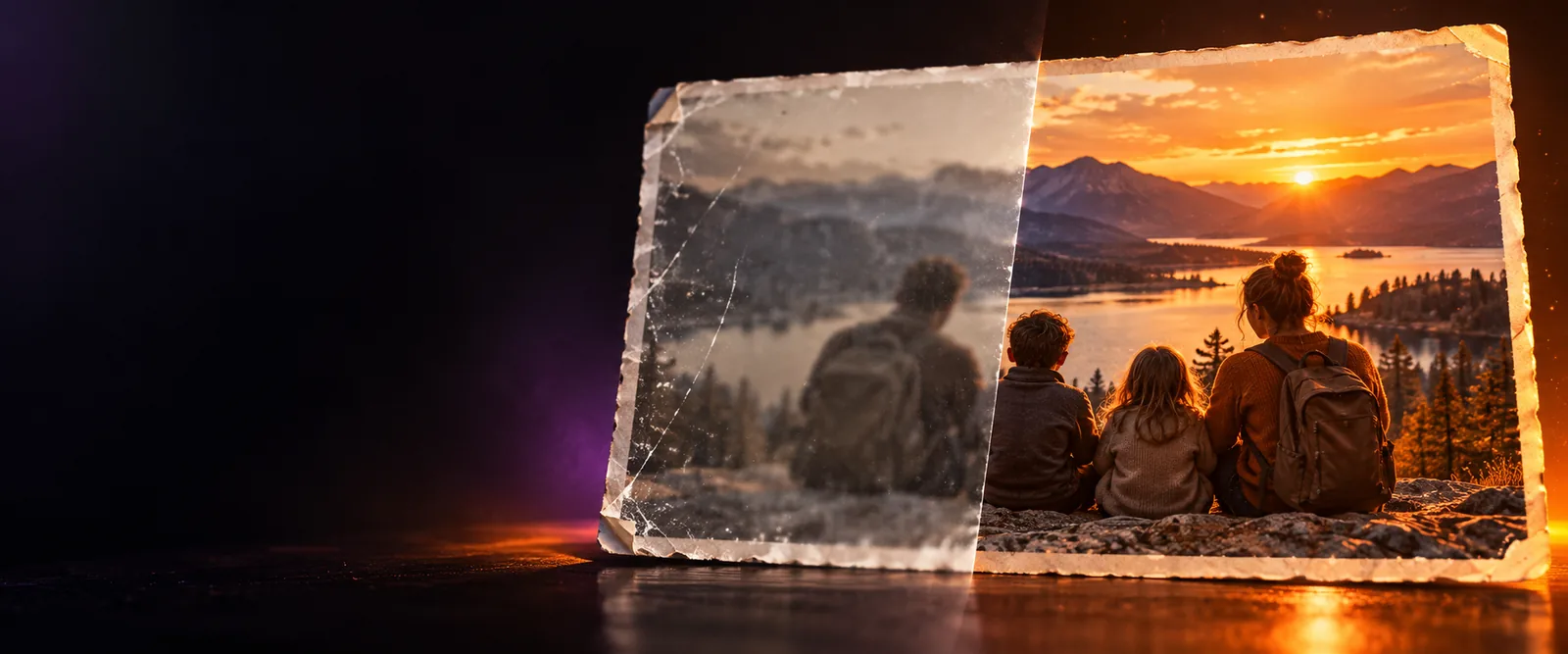
“Enhance” can mean sharpening, repairing, recoloring, or changing the image entirely. Pick the task before judging a result.
The useful mechanism depends on the source: noise reduction smooths distractions, detail adjustment clarifies edges, and color correction changes how the scene reads.
A scanned photograph has faded tones and a little grain.
Aim for legible detail without inventing faces or removing the character of the print. Compare with the untouched scan before keeping an edit.
photo enhancer freeA product photograph looks dim against a neutral background.
Adjust brightness and color cautiously so the item remains representative; an attractive result is not useful if its real color changes.
image color enhancer online freeA draft image looks soft when viewed larger.
Inspect outlines and lettering separately. Added crispness may improve presentation, but it cannot reliably recover detail absent from the source.
ai image enhancer freeAn indoor snapshot contains visible grain around a face.
Ask for restrained cleanup, then zoom in to check eyes, hair, and skin texture for unexpected changes.
ai face enhancerA short workflow makes it easier to tell whether the edit helped or merely looks different.
Save an untouched copy and choose an image you have permission to use. Avoid uploading sensitive faces, documents, or private surroundings until you have reviewed the destination’s terms.
Name the subject and the defect in plain language. For example, request less background grain while retaining natural skin texture; avoid asking for sharpening, recoloring, and restoration all at once.
Compare the result with the original at the same zoom. Check text, facial features, repeated patterns, and object edges, then keep the version that stays faithful to the source.
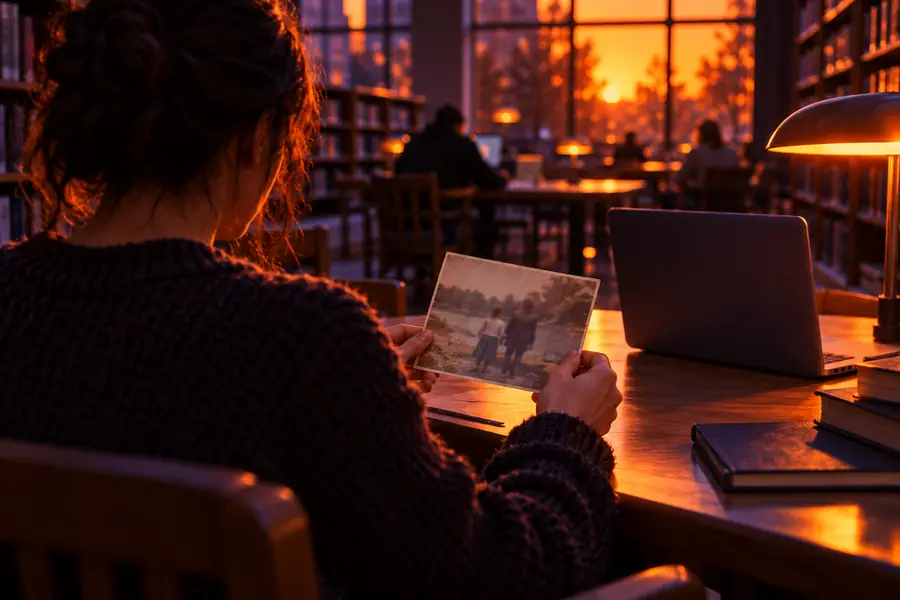 Before
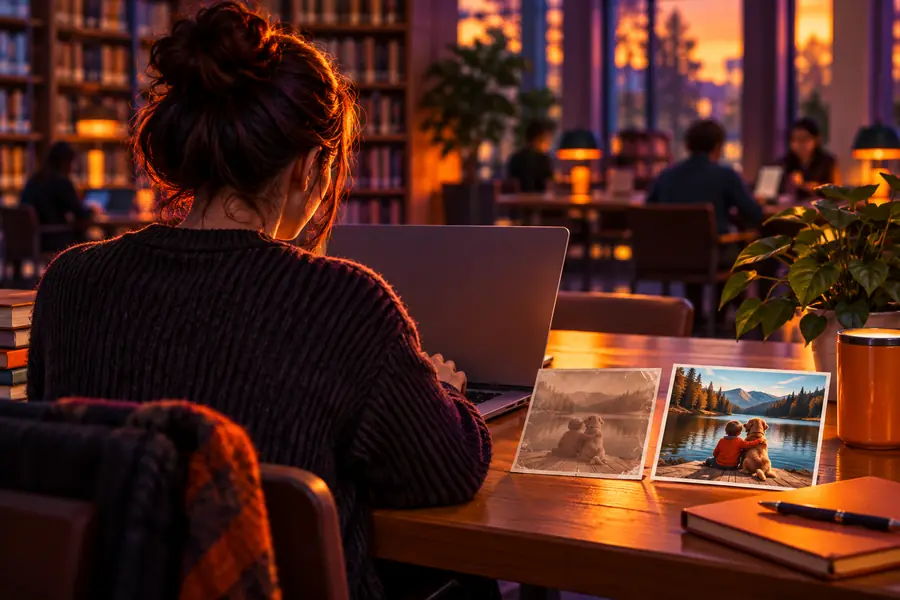 After
After
Neither approach is universally better. The important trade-offs concern control, privacy, and how closely you need to inspect the result.
Where the image is handled
Browser-based workflow
Depends on the service and its stated processing terms
Local image editor
Can remain on your device when using an offline editor
Getting started
Browser-based workflow
Open a site and review its available tools
Local image editor
Install or open software and select an editing method
Fine adjustments
Browser-based workflow
Depend on the controls the site provides
Local image editor
May offer masks, layers, and selective edits
Privacy check
Browser-based workflow
Read upload, retention, and sharing policies first
Local image editor
Check software permissions and any cloud-sync settings
Revisions
Browser-based workflow
Availability depends on the service
Local image editor
Can be saved in an editable project when supported
Best initial test
Browser-based workflow
Try a non-sensitive image with one clear goal
Local image editor
Make a duplicate and adjust a small area first
An enhancement can produce plausible-looking texture, but that does not prove the texture was in the original image.
Workaround
Keep the source and avoid treating reconstructed details as evidence.
A search for an ai enhancer online free does not establish the linked service’s current access terms, export options, or limits.
Workaround
Review the destination’s terms and available actions before uploading.
A browser-based service may have policies for processing, storing, or sharing uploads that matter for private photographs.
Workaround
Read those policies first, or use an offline editor for material you cannot upload.
Heavy processing may create halos around edges, waxy skin, or distorted lettering.
Workaround
Compare both versions at equal zoom and favor restrained changes.
Bring a non-sensitive test image and describe one change you want to assess. At the destination, confirm which editing options and terms actually apply, then compare any result against your original.
Explore image editingThat depends on the individual service and its current terms. Check what you can do and export before uploading; a search result containing “free” does not verify that the linked destination is free.
It may make some edges look clearer, but it cannot reliably recover information that was never captured. Check faces, text, and fine patterns for invented or distorted detail.
A browser-based workflow begins on a website, though the actions available depend on that site. If you prefer to keep a sensitive image on your device, consider an offline editor instead.
Read the service’s privacy and processing terms, especially for images containing other people or private information. Start with a non-sensitive test image and keep your original file.