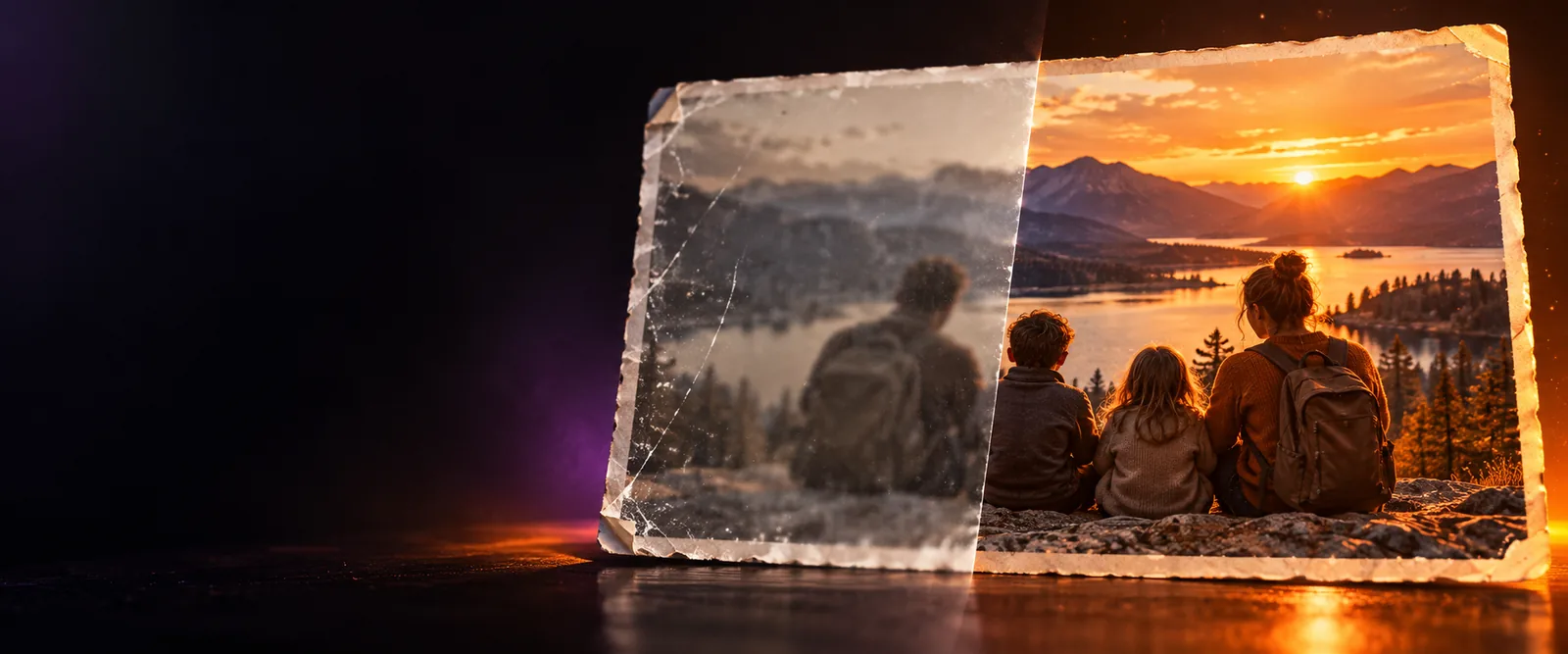
Image editing choices

Find an ai enhancer alternative free to evaluate

Aienhancer helps you weigh AI-assisted enhancement against editing a photo yourself. Start with one image you know well, check the current terms of any tool you try, and judge the result at its intended display size.

Image enhancement artwork on Aienhancer

Verdict first Choose by the image, not the label

An AI-assisted tool is worth testing when speed matters; manual editing is a better starting point when precise, reversible control matters most. Neither approach can recover detail that was never captured.

Dimension by dimension Match the method to the job

The most useful comparison is not a universal winner. It is whether a method improves your specific file without changing details you need to preserve.

Portrait keeper

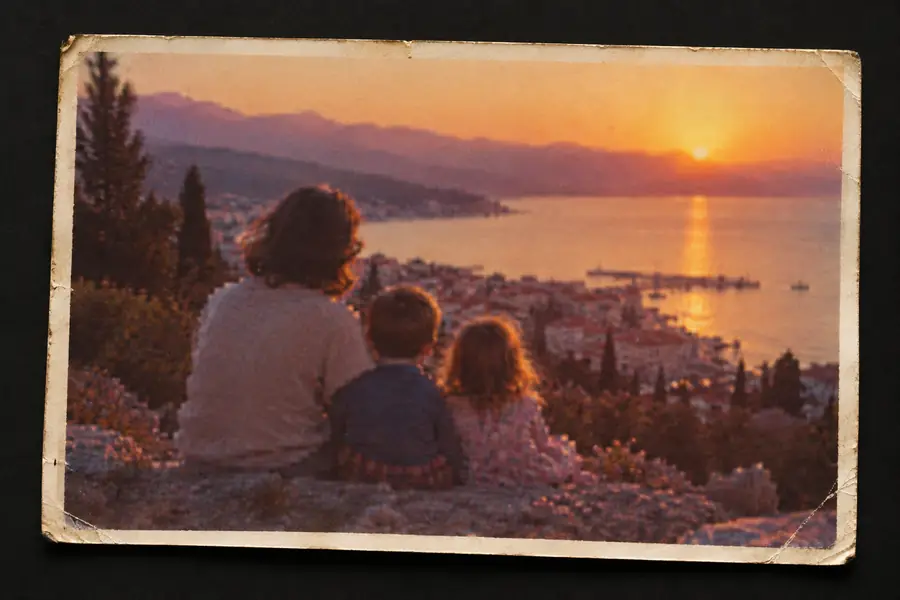
An old family photo has a soft face, scratches and uncertain skin texture. AI reconstruction may look convincing while changing a person's features.

Keep the original beside every candidate and favor a restrained result over a sharper but unfamiliar face.

ai face enhancer
Small-shop photographer

A product image needs clearer edges and more consistent brightness. Automated changes can also alter lettering, packaging or color.

Compare labels and colors against the physical item before using the image publicly.

ai photo enhancer

Travel-photo editor

A dim, noisy snapshot needs to look better on a phone screen. Heavy smoothing can erase foliage, fabric and other fine textures.

Inspect both the full frame and a close crop; stop when the photo looks clean at its actual viewing size.

photo enhancer free

Color-focused creator

A flat landscape needs warmer tones, but sharpening is not the main problem. A targeted color adjustment may be easier to control.

Correct exposure and white balance first, then decide whether enhancement adds anything useful.

image color enhancer online free

Who each suits A practical migration path

If you are moving from a familiar editor to an AI enhancer, test a copy rather than replacing a working process overnight.

  1. 1

    Choose a representative original

    Pick a photo with the problem you actually face: blur, noise, low resolution or dull color. Save an untouched copy. A polished demonstration image cannot tell you how your own files will behave.

  2. 2

    Run a controlled comparison

    Apply the same goal in your current workflow and in the alternative you are evaluating. Keep crop and display size consistent. Compare edges, faces, text, backgrounds and any area where invented detail would be a problem.

  3. 3

    Check the handoff before switching

    Confirm the service's current upload rules, export options and access terms on its own site. Retain your originals and note which edits you can reproduce. Move routine work only after several different photos pass the same checks.

The side-by-side verdict table

These are workflow trade-offs, not claims that every AI enhancer or manual editor has identical controls. Verify a particular service's features and terms before committing files to it.

Manual image editor
AI-assisted enhancement workflow

Best starting point

Manual image editor

Specific corrections you can identify and adjust individually.

AI-assisted enhancement workflow

Testing a proposed overall improvement on a copy of the image.

Control

Manual image editor

Depends on available tools, but edits can often be made one setting at a time.

AI-assisted enhancement workflow

Depends on the service; automated results may offer less control over individual details.

Missing detail

Manual image editor

Sharpening can emphasize existing edges but cannot reveal absent information.

AI-assisted enhancement workflow

Reconstruction may create plausible detail that is not faithful to the scene.

Faces and text

Manual image editor

Local adjustments let you target an area while watching for distortion.

AI-assisted enhancement workflow

Inspect identity, letters and logos closely after processing.

Repeatability

Manual image editor

Saved settings can help reproduce an edit when the editor supports them.

AI-assisted enhancement workflow

Results and repeatability depend on the tool and its current model or settings.

Privacy decision

Manual image editor

A locally installed editor may allow files to remain on your device.

AI-assisted enhancement workflow

For an online service, check its upload, retention and deletion policies first.

Free access

Manual image editor

Depends on the editor and any features required.

AI-assisted enhancement workflow

Depends on the service's current limits, output rules and account requirements.

What an alternative cannot promise

The word free is not a quality guarantee, and an improved-looking image is not necessarily a more accurate one.

It cannot restore unknowable detail

If a face, sign or distant object was never recorded clearly, an AI enhancer may guess at its appearance rather than recover the original.

Workaround

Keep the source file and avoid treating reconstructed areas as documentary evidence.

It cannot guarantee unrestricted access

Free availability, export resolution, file handling and account requirements can change. This page does not establish the current terms of the destination reached through its CTA.

Workaround

Read the destination's live terms and test its export process before planning a batch.

It cannot make every photo better

Noise reduction can remove texture; sharpening can produce halos; color changes can misrepresent skin, products or artwork.

Workaround

Review a full-size crop and the final display size, then reject any version that loses important detail.

It cannot replace a privacy decision

An online workflow may require an upload. Do not assume that an image is deleted immediately or used only for your edit.

Workaround

Check the provider's policy, or use a suitable local editor for sensitive images.

Inspect the image, not just the split view

Example image before an upscaling-style edit Before
Example image after an upscaling-style edit After
This illustrative pair is not a verified output from the CTA destination. Use the divider to identify areas worth checking in your own test: fine edges, natural texture, text and any detail that looks newly invented.

Make the comparison with your own photo

Test a candidate before changing your workflow

Looking for an ai enhancer alternative free to evaluate? Follow the CTA to explore the destination, check its current access and privacy terms, and try a non-sensitive copy first. Compare that output with both your original and a manual edit before deciding which method earns a place in your workflow.

Explore image tools
  • Keep an untouched original
  • Check the live terms before uploading
  • Judge accuracy as well as sharpness

Comparison FAQ

Start with the kind of correction you need, then shortlist AI-assisted and conventional editors that address it. Check each provider's current access terms and test the same non-sensitive image in each workflow; a free label alone does not establish what you can export.

There is no dependable answer without a specific image and two specific tools. Compare a portrait, a textured area and any text at the size you intend to use; access terms and a result that looks sharper do not establish accuracy.

Yes. Conventional controls such as exposure, color, denoising and sharpening can improve a photo when its existing detail is sufficient. They generally offer a different trade-off from AI reconstruction, which can introduce plausible-looking content.

Read its current privacy, retention and deletion policies, along with its accepted files and export terms. For sensitive photos, consider whether a suitable local workflow would avoid an upload altogether.

Switch when repeated tests on your own images show a useful improvement without unacceptable changes to faces, text, color or texture. Keep your originals and your existing workflow available until you know the alternative handles more than one favorable example.

Start creating
Start creating