Practical image guide

Follow an ai enhancer tutorial free from upload to export

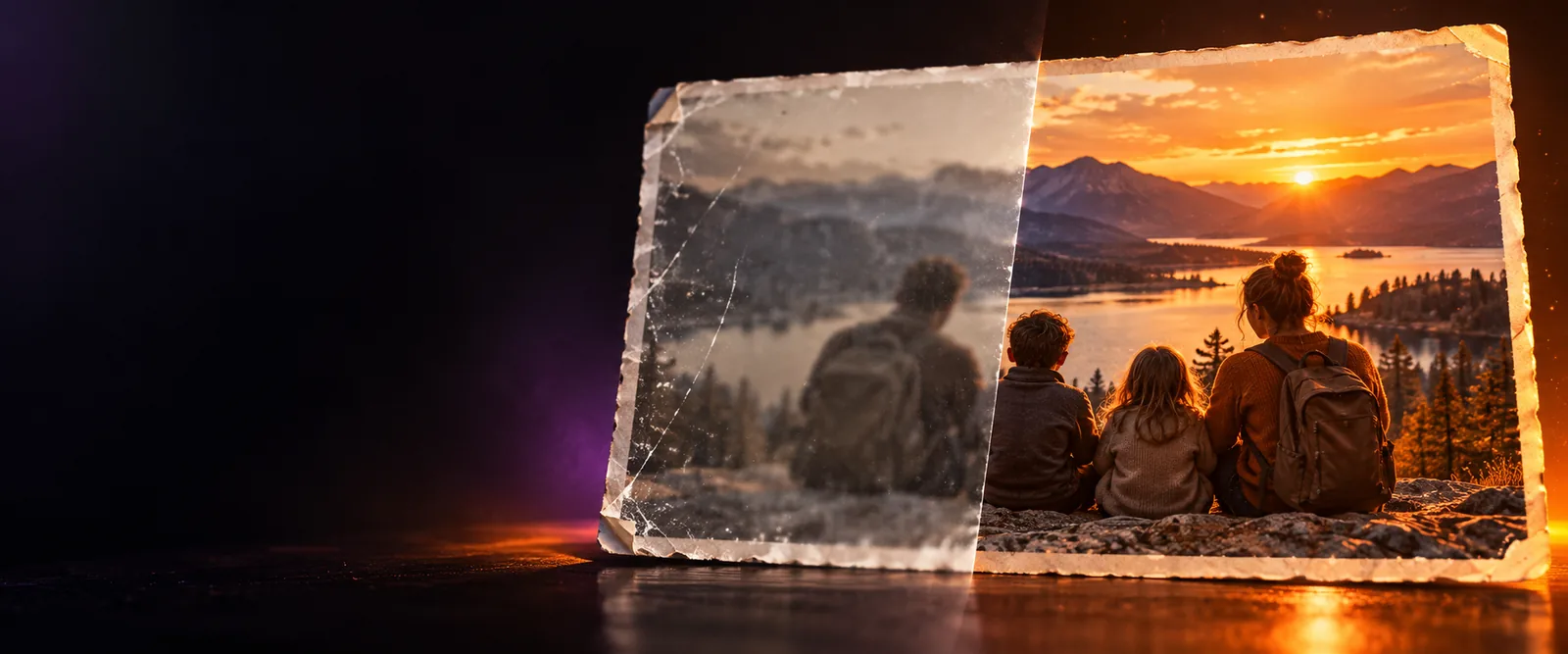
This ai enhancer tutorial free walks through a careful image-improvement workflow, from choosing a source file to checking the result and refining the final look.

Review the result before export
AI-enhanced image editing workspace

Before you begin

Prerequisites

A good result starts with a suitable source image and a clear goal. Prepare the file and decide what should improve before changing any settings.

It cannot recover every missing detail

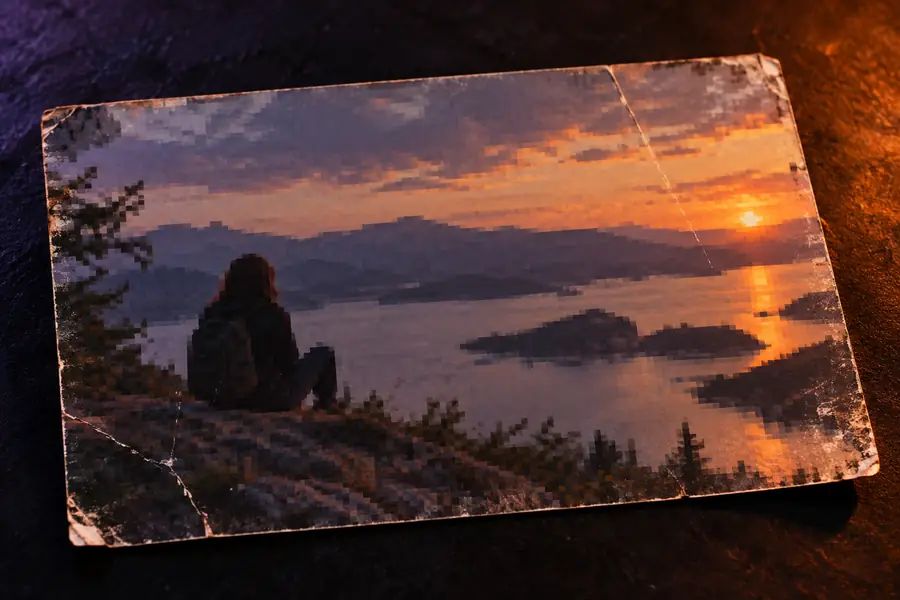
An ai enhancer can estimate texture and edges, but it cannot reliably reconstruct information that was never captured. Severe motion blur, heavy compression, or tiny source images may still look artificial.

Workaround

Use the cleanest original file available and make moderate improvements before trying a stronger pass.
It cannot know your intended style

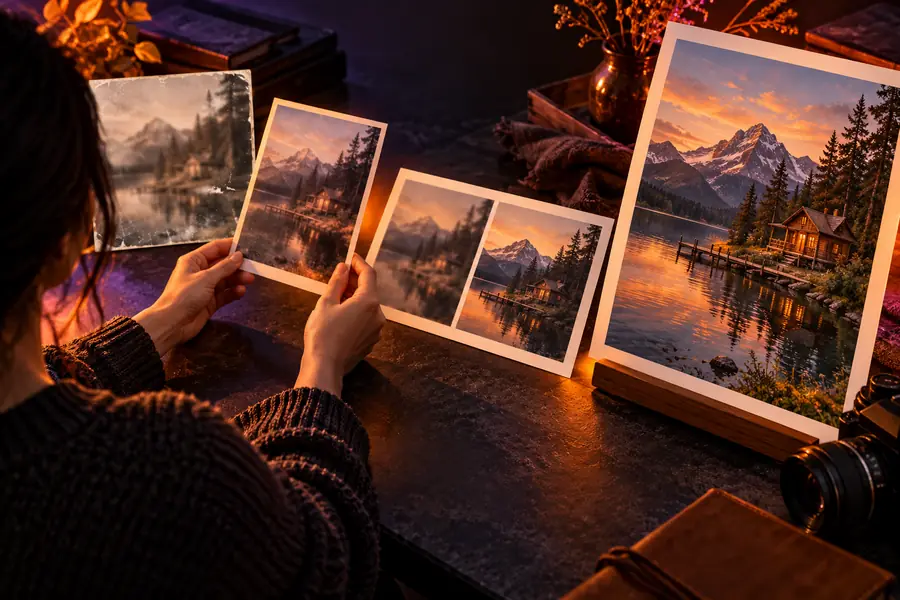
The tool can improve clarity, color, and visible structure, but it cannot decide whether you want a natural portrait, a dramatic grade, or a stylized image without guidance.

Workaround

Describe the desired finish in plain language, such as natural, warm, editorial, or documentary.

It cannot guarantee perfect faces or text

Faces, hands, logos, and small lettering are difficult areas for any ai enhancer. Generated detail may look plausible while still differing from the source.

Workaround

Inspect important details at full size and avoid using an unverified result for identity-sensitive or text-critical work.

It cannot replace source-quality judgment

Upscaling a poorly exposed or heavily damaged image does not automatically correct every problem. A larger file can make defects easier to notice.

Workaround

Fix the most obvious exposure or crop issue first, then enhance resolution and detail.

Core workflow

Numbered steps

Use these three stages as a repeatable baseline. The goal is controlled improvement, not maximum processing on every image.

  1. 1

    Choose and describe the source

    Upload the clearest version of the image you have. State what needs attention, such as soft focus, low resolution, muted color, sensor noise, or an old-photo repair. A specific request gives the ai enhancer a better direction than a vague command.

  2. 2

    Generate a restrained first pass

    Start with a moderate enhancement and inspect the whole image before zooming into details. Check whether edges remain natural, skin texture is believable, and colors still match the original subject. Save this first pass so you can compare later versions.

  3. 3

    Compare, refine, and export

    Use a before-and-after check to identify improvements and new artifacts. If the image looks over-sharpened, plastic, or overly saturated, ask for a more natural result rather than adding more intensity. Export only after reviewing faces, text, and fine edges.

Troubleshooting

Common errors and fixes

Most weak results come from an unclear request, an unsuitable source, or judging the image only at thumbnail size.

Quality check

Advanced tips

Once the basic workflow is reliable, use comparisons and targeted instructions to keep the result convincing rather than merely sharper.

Low-resolution image before enhancement Before enhancement
Improved image after enhancement After enhancement
Compare at the same display size before deciding whether the ai enhancer improved the image.

Decision guide

Moderate enhancement
Strong enhancement

Best starting point

Moderate enhancement

Everyday photos, portraits, product images, and lightly soft files

Strong enhancement

Very small, visibly damaged, or severely blurred source images

Texture appearance

Moderate enhancement

Usually easier to keep natural and close to the source

Strong enhancement

May add convincing-looking detail that was not originally present

Face handling

Moderate enhancement

Better for preserving familiar skin texture and expression

Strong enhancement

More likely to create waxy skin or altered small features

Edge sharpness

Moderate enhancement

Improves definition without making every boundary harsh

Strong enhancement

Can make halos, outlines, and compression artifacts more visible

Color changes

Moderate enhancement

A safer choice when the original color matters

Strong enhancement

May produce a stronger visual change that needs review

Recommended review

Moderate enhancement

Check the full image, then inspect important details

Strong enhancement

Check faces, hands, lettering, logos, and repeated patterns closely

When to use it

Moderate enhancement

Choose this for a first pass and most publishable images

Strong enhancement

Use only when the source is poor and you accept more visible interpretation

Use-case practice

The right workflow depends on the subject. These examples show how to adjust the request without changing the basic review process.

Family photo keeper

An older family photograph has faded contrast, mild blur, and dust-like marks. Ask for restoration with natural faces and restrained color correction.

The image becomes easier to view and archive while preserving the period feel instead of turning it into a glossy modern portrait.

ai enhancer for photo

Online seller

A product shot looks soft after being resized for a marketplace listing. Request clearer edges, balanced color, and a clean background without changing the product shape.

The listing image reads more clearly while remaining closer to the actual item buyers should expect.

image color enhancer online free

Portrait creator

A low-light portrait contains noise and muddy skin detail. Ask for noise reduction, realistic texture, and gentle sharpening around the eyes and hair.

The subject gains clarity without the over-smoothed appearance that can make a portrait feel synthetic.

ai face enhancer

Travel photographer

A distant landscape is usable but lacks local contrast and fine definition. Request controlled sharpening and detail recovery while keeping the sky and foliage natural.

The scene feels clearer at normal viewing size without exaggerated halos or invented dramatic color.

ai photo enhancer

Put the workflow into practice

Start with one image, describe the specific improvement you want, and judge the result against the original. A careful first pass usually teaches you more than repeatedly increasing every setting.

Try the image enhancer
  • Begin with the cleanest source available
  • Use a specific, natural-language goal
  • Compare before exporting

Your questions

Tutorial FAQ

Prepare the highest-quality original image you can find and decide what needs improvement. It also helps to identify whether your priority is clarity, color, noise reduction, facial detail, or restoration so the request stays focused.

Begin with a moderate enhancement and a specific description of the problem. Review the entire image first, then inspect important details such as faces, lettering, hands, and fine edges before making a stronger pass.

Ask for a natural finish and avoid requesting maximum sharpness immediately. Compare the enhanced image with the source at the same size, and reduce the intensity or revise the instruction if skin, edges, or colors look exaggerated.

It may improve apparent clarity, but it cannot recover every detail from a severely blurred or very small source. Results are more dependable when the original contains recognizable edges, adequate exposure, and enough information for the tool to work with.

Crop first when the crop removes distracting background and leaves a clear subject, but keep enough resolution for processing. For a large original, enhancing before a tight crop can preserve more detail; compare both approaches when the crop is important.

The image is ready when the improvement is visible without making the subject look altered. Check it at normal viewing size and full size, confirm that key details remain accurate, and keep the original alongside the final export.

Start creating
Start creating