Practical image guide

Choose the best free ai enhancer for sharper images

The best free ai enhancer is the one that matches your source image, improves the detail you actually need, and lets you judge the result before committing to a larger workflow. Start with a clean test image and compare the output at its intended size.

Review the result before continuing
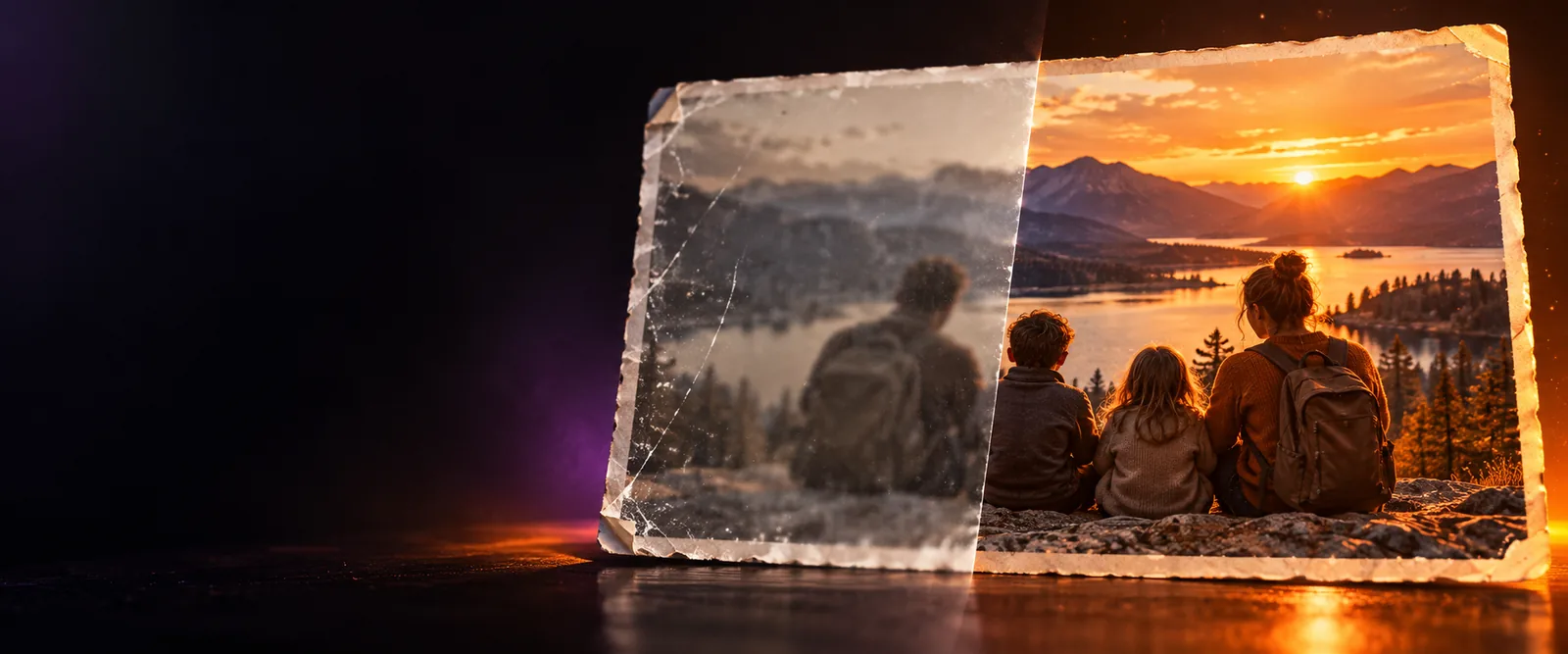
AI-enhanced image examples in a visual workspace

Start here

Prerequisites for a useful test

A few simple checks make an enhancement easier to judge and reduce the chance of mistaking sharpening artifacts for genuine detail.

  1. 1

    Choose a representative image

    Use the photo you actually need to improve, not an unusually high-quality sample. A portrait, scanned print, product shot, or dark scene will reveal different strengths and weaknesses.

  2. 2

    Set one clear priority

    Decide whether you care most about softness, low resolution, noise, faces, color, or an old-photo repair. A focused goal makes before-and-after comparisons more meaningful.

  3. 3

    Inspect at final size

    Review the result both close up and at the size where it will be shared or printed. Natural texture and edges matter more than dramatic zoomed-in pixels.

Visual check

One full run-through

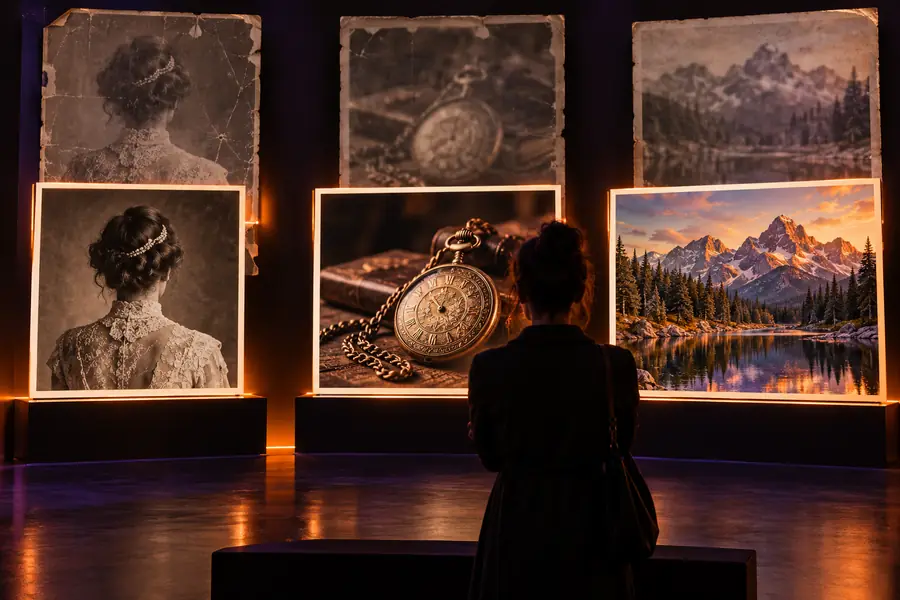
A before-and-after comparison is most useful when the source and result are judged under the same conditions. Look for recovered structure, not just a stronger edge effect.

Soft, low-resolution source image before enhancement Before
Sharper image after AI-assisted enhancement After
Compare faces, edges, texture, and color at the same display size.

Set expectations

What fails and how to recover

Enhancement can clarify existing information, but it cannot reliably reconstruct every missing fact. These limits are normal, especially with heavily compressed or very small sources.

Severe blur stays uncertain

When a face or object has no usable structure left, added sharpness may create invented-looking edges instead of true detail.

Workaround

Try a larger original, reduce the enhancement strength, and judge the result at its final viewing size.

Tiny text may remain unreadable

A small screenshot or distant sign can be too compressed for dependable lettering, even after enlargement.

Workaround

Use the original document or capture a closer, higher-resolution image when accuracy matters.

Color changes can look unnatural

Dark, underexposed, or heavily filtered photos may receive a stronger contrast or color shift than you intended.

Workaround

Compare against the source and prioritize natural skin tones and familiar neutral objects.

Motion blur is not fully reversible

An enhancement can improve the appearance of a moving subject, but it cannot always recover the exact shape lost during exposure.

Workaround

Use a sharper frame from the same sequence or select a source with less camera and subject movement.

Decision guide

Options table for choosing a workflow

There is no single best route for every image. Compare the AI-assisted path with a manual editor according to the job, the source, and how much control you need.

AI-assisted enhancement
Manual editing

Best starting point

AI-assisted enhancement

A soft, noisy, low-resolution, or lightly damaged image

Manual editing

An image that already has enough detail for precise adjustments

Primary advantage

AI-assisted enhancement

Quickly tests several improvement priorities with less manual work

Manual editing

Gives direct control over individual edits and masks

User effort

AI-assisted enhancement

Describe the goal, review the result, then refine your request

Manual editing

Select tools, adjust settings, and inspect each change

Face and texture judgment

AI-assisted enhancement

Useful for exploring a natural-looking improvement, but inspect closely

Manual editing

Useful when you need to control skin, hair, or local texture by hand

Very small text

AI-assisted enhancement

May improve legibility but cannot guarantee accurate recovery

Manual editing

Can sharpen or clean an image, but cannot recreate missing letters

Best review habit

AI-assisted enhancement

Compare before and after at the final display or print size

Manual editing

Toggle edits on and off while checking edges and neutral colors

Try your image

Test the workflow on a real photo

A short, specific request is a better starting point than a vague instruction. Name the subject, the problem you see, and the result you want to preserve. Then review the output for natural edges, believable texture, and colors that still match the original.

Enhance my image
  • Start with one representative source
  • State the improvement you care about
  • Check the result at its intended size

Common questions

FAQ

Look for a workflow that matches your image problem, gives you a clear way to describe the desired result, and makes comparison easy. Natural edges, believable texture, and preserved colors are more important than extreme sharpness.

It can often improve mild softness, noise, or limited resolution, but results depend on what detail remains in the source. Severe motion blur, tiny text, and missing facial features may stay uncertain or become visibly artificial.

It can be a useful first pass for faded, noisy, or low-resolution family photos. Keep the original safe, compare the result with it, and use a higher-quality scan if the image is important.

Use the same source, view both images at the same size, and inspect the areas that matter most for your purpose. Check faces, fine edges, shadows, neutral colors, and small details rather than judging only by zoomed-in sharpness.

Start creating
Start creating