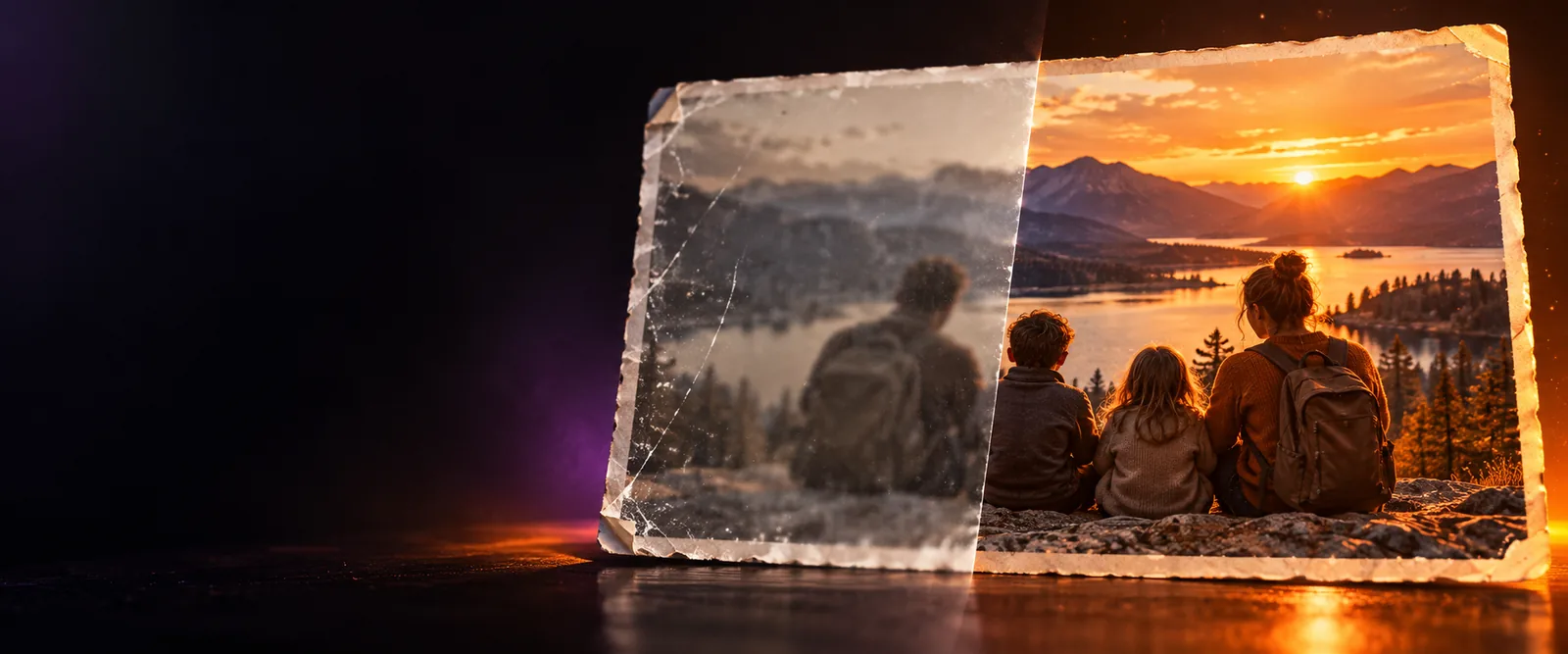
Use an ai image enhancer free workflow for better pictures

An ai image enhancer free workflow can help you make a soft, noisy, or undersized picture easier to view without rebuilding the entire image. Start with one source file, describe the improvement you want, and inspect the result before deciding whether it is ready to share.

Review the result before sharing
Aienhancer image enhancement workspace

Prerequisites for a clean enhancement

A little preparation gives the enhancer better information to work with and makes the before-and-after comparison more useful.

  1. 1

    Choose the strongest source

    Use the original image when possible. A larger, less compressed file gives the process more genuine detail to preserve and reduces the chance that artifacts become more prominent.

  2. 2

    Name the priority

    Say whether you want sharper edges, reduced noise, restored color, clearer faces, or a larger output. A focused instruction is easier to evaluate than a request to change everything.

  3. 3

    Inspect before keeping

    Compare the enhanced result with the source at the same scale. Check faces, text, fine texture, and smooth color areas before you download or reuse the image.

One full run-through

The route is most useful when you treat enhancement as a reviewable pass rather than an automatic guarantee that every damaged pixel can be recovered.

Options table: enhancement choices

The best choice depends on the source, the defect you can see, and how much interpretation you are willing to accept in the finished image.

AI image enhancement
Manual image editing

Best starting point

AI image enhancement

A blurry, noisy, faded, compressed, or low-resolution image that needs several corrections at once.

Manual image editing

A source that is already clear and needs a precise adjustment to one small area.

Detail recovery

AI image enhancement

Can infer plausible edges and texture where the source is weak, but the result should still be checked.

Manual image editing

Can sharpen existing detail but cannot reliably recreate information that was never captured.

Control

AI image enhancement

Uses a written goal and the tool's image-processing behavior to shape the pass.

Manual image editing

Offers direct control over individual sliders, selections, masks, and layers.

Speed of a first pass

AI image enhancement

Useful for testing a broad cleanup direction before spending time on fine edits.

Manual image editing

Often takes longer when several corrections must be applied separately.

Risk to original character

AI image enhancement

May smooth texture, alter small features, or make an interpretation that needs review.

Manual image editing

Keeps changes closer to the settings and selections you make.

Good use case

AI image enhancement

Old photos, dark snapshots, soft product pictures, and images prepared for a larger display.

Manual image editing

Exact retouching, brand color matching, compositing, and pixel-level corrections.

Review requirement

AI image enhancement

Compare faces, lettering, repeated patterns, and fine texture against the source.

Manual image editing

Review the selected areas and settings, especially after strong sharpening or color changes.

What fails and how to recover

Enhancement improves an input; it does not turn every damaged, tiny, or ambiguous source into a faithful original.

Severe blur has no true detail to restore

If motion blur has merged edges completely, the process may create a plausible-looking edge rather than recover the exact scene.

Workaround

Try a sharper frame or original file, then use a lighter pass so invented texture is less noticeable.
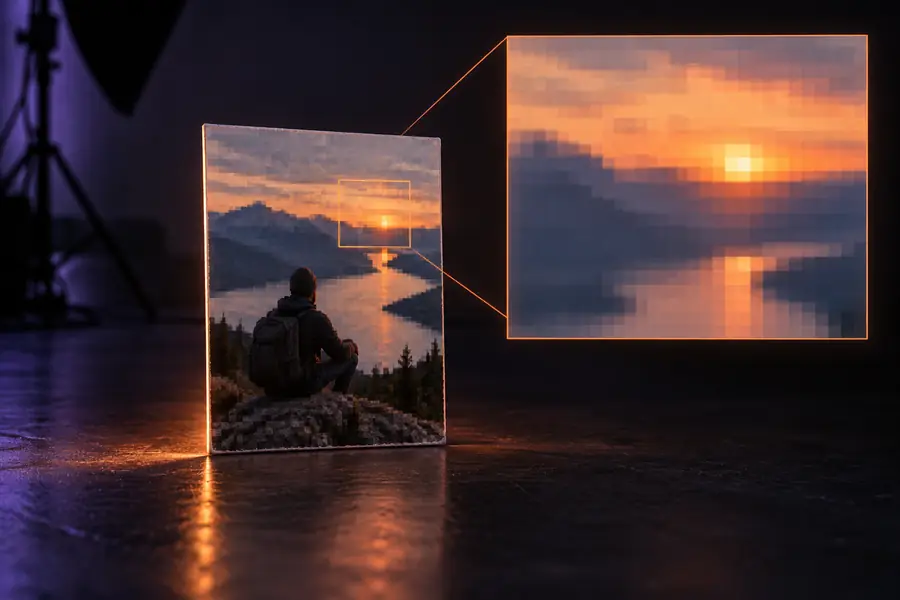
Tiny text may remain unreadable

Upscaling can enlarge letters, but it cannot guarantee correct characters when the source contains only a few indistinct pixels.

Workaround

Use the clearest scan available and verify every word manually before publishing or transcribing it.

Faces can look over-processed

A strong pass may smooth skin, change small facial features, or make eyes and teeth look unnatural.

Workaround

Ask for natural restoration, compare at 100 percent, and prefer a moderate result over maximum sharpness.

Flat color and compression can confuse the result

JPEG blocks, banding, and clipped highlights may be interpreted as texture or edge information.

Workaround

Start with the original export, avoid repeated re-saving, and use a color-focused workflow when tone is the main problem.

Before and after

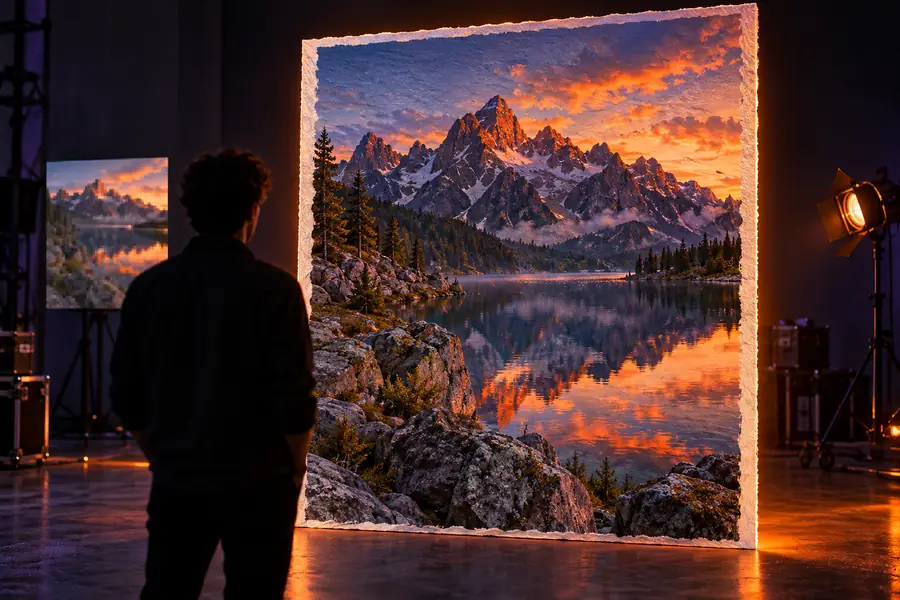
Soft low-resolution source image before enhancement Before
Sharper enlarged image after enhancement After
Compare texture, edges, faces, and text at the same zoom before choosing the result.

Ready to test an image?

Bring one representative file and begin with the problem you can actually see: blur, noise, faded color, weak detail, or a small output size. A focused first pass makes it easier to judge whether the result preserves the image's identity and whether another approach, such as ai face enhancer, is better suited to the subject.

Enhance an image
  • Start with the original file when available
  • Describe one or two priorities clearly
  • Review the result before sharing

FAQ

It processes an existing image to improve visible qualities such as sharpness, noise, color, or apparent detail. The result is an enhancement of the supplied file, not a guaranteed recovery of every detail that was missing.

You can often get a more usable result, especially when the source has recognizable shapes and moderate damage. Use a restrained instruction and inspect faces, lettering, repeated patterns, and skin texture for changes that were not in the original.

It can be a useful first pass for faded color, light noise, soft focus, and ordinary compression damage. Severely scratched, torn, or heavily blurred photos may need additional manual restoration and careful fact-checking against the original.

Use AI when you want a quick combined pass or need help identifying a useful restoration direction. Choose manual editing when exact color control, selective retouching, layers, or pixel-level accountability matters more than speed.

Compare the source and result at the same viewing size, then zoom in on faces, fine edges, text, and smooth backgrounds. Keep the version that improves the intended use without introducing distracting texture, halos, or altered details.

Start creating
Start creating