Archive keeper
An old clip looks soft, dim, or noisy after transfer from an earlier format.
A focused request can prioritize clearer visibility while keeping the original scene recognizable.
ai photo enhancerVideo workflow
An ai video enhancer free search usually means you want to improve motion footage without wasting time on image-only tools. Use this guide to compare the path, check the tradeoffs, and prepare a focused enhancement request.
A useful first pass is specific about the source, the visible problem, and the result you want. Keep the request narrow so you can judge whether the change helps.
Name the main issue, such as soft detail, visible noise, poor lighting, or a distracting color cast. Mention whether preserving natural motion is important.
Ask for a restrained improvement rather than a vague quality boost. A clear goal makes it easier to compare the processed result with the original.
Use the primary action to continue to the available product workflow, then verify that the destination supports the file and enhancement type you need.
Video and image enhancement share a quality goal, but they are not interchangeable tasks. This comparison helps you choose the more relevant starting point.
Source material
Video enhancement path
Moving footage with multiple frames
General image path
A still image or single frame
Main concern
Video enhancement path
Consistent improvement across motion
General image path
Detail and appearance in one frame
Useful request
Video enhancement path
Reduce noise while preserving natural movement
General image path
Sharpen, restore, upscale, or adjust a still
Review method
Video enhancement path
Check several moments, not only one frame
General image path
Inspect edges, faces, texture, and color in one output
Common risk
Video enhancement path
Artifacts may become noticeable as the scene changes
General image path
Over-sharpening or invented detail in a static area
Best starting context
Video enhancement path
Short, clearly described footage
General image path
A representative photo with a specific defect
Related Aienhancer route
Video enhancement path
Use the video-focused request when available
General image path
Use the general image route for still-file work
The strongest requests usually fall into three practical jobs: recover visibility, control distracting artifacts, or make a clip easier to inspect. Each use case below links to a related image path when a still workflow is the better fit.
An old clip looks soft, dim, or noisy after transfer from an earlier format.
A focused request can prioritize clearer visibility while keeping the original scene recognizable.
ai photo enhancerA short personal recording needs a more readable face or subject without a dramatic restyle.
A restrained enhancement brief keeps attention on the people and moment rather than adding a new look.
ai face enhancerA clip has distracting color or uneven lighting before it is placed in a larger edit.
Describe the tonal problem first, then compare the result against the source before using it publicly.
image color enhancer online freeA demonstration video needs cleaner visible detail around an object or interface.
A specific detail-preservation request is easier to assess than a broad instruction to make everything better.
ai image enhancer free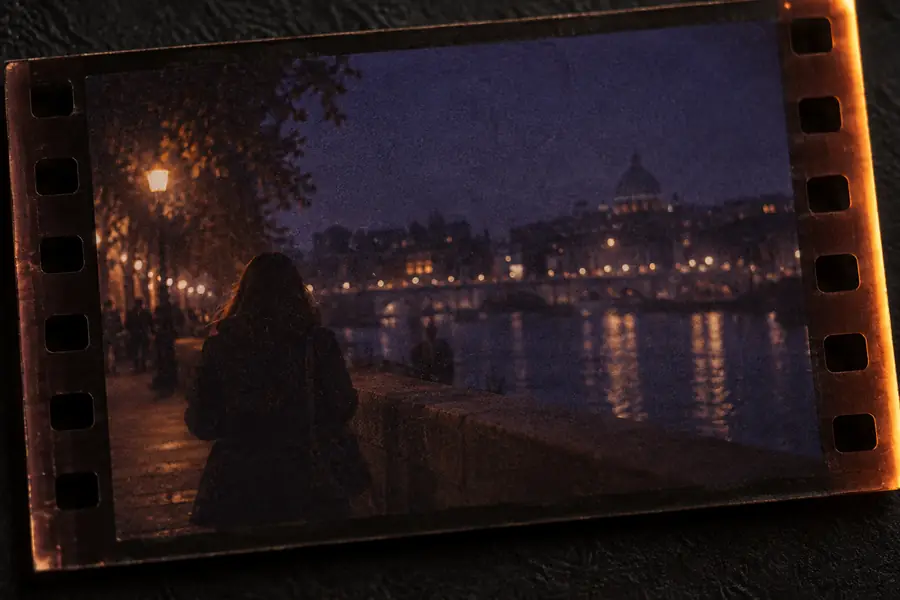 Before
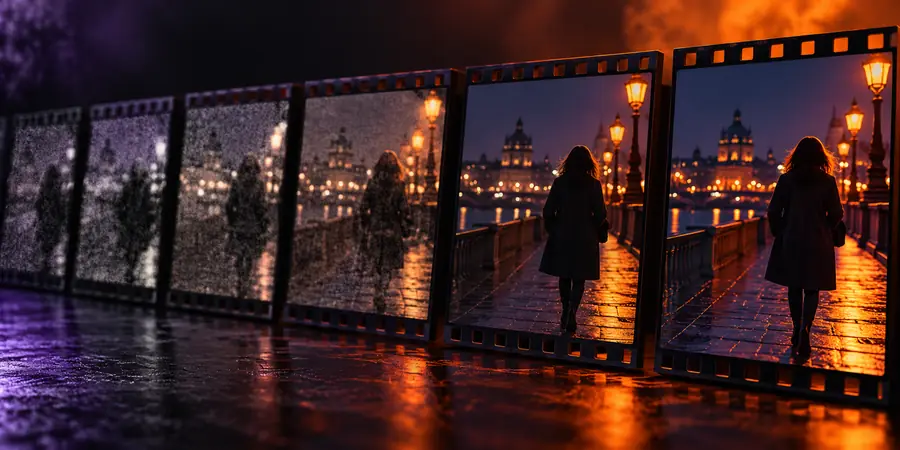 After
After
An AI video enhancer free workflow is not a guarantee that every clip can be restored cleanly. Results depend on the source, compression, lighting, motion, and the capabilities available at the handoff destination. Extremely blurred detail cannot always be recovered, and stronger processing can introduce halos, texture changes, or unstable results between frames. Start with a representative segment, keep the requested change conservative, and compare multiple moments with the original. If the project is actually a still image, switch to the more relevant image path instead of forcing a video workflow.
Check the video workflowIt is generally used to improve the visible quality of moving footage, such as reducing distracting noise, clarifying soft detail, or balancing an uneven-looking clip. The exact controls and supported inputs depend on the product receiving the request.
No. Enhancement can make some footage easier to view, but it cannot reliably recreate detail that was never captured. Heavy compression, severe blur, fast motion, and very dark frames can still produce limited or inconsistent results.
Yes. A photo workflow evaluates one frame, while video enhancement must account for changes across many frames. A result that looks good in a single paused image may still show flicker, unstable texture, or motion artifacts when the clip plays.
Describe the source problem and the result you want, such as reducing low-light noise while preserving natural motion. Mention any detail that must remain unchanged, and review several moments of the output before relying on it.